



So you open Instagram, tap the plus button and look for your MP3. It's not there.
You're not doing anything wrong. Instagram just doesn't take audio files. Only photos and videos.
The good news? There's an easy way around it. In this guide I'll show you how to get your podcast, song or voice memo on Instagram. As a Reel, a Story or a post.
The problem
Instagram is a visual app. Every post needs something to look at. So an MP3 on its own won't work.
Facebook has the same problem by the way. I wrote about getting your MP3 on Facebook too.
You have three options:
- Turn your audio into a video. This is the one I recommend.
- Pick a song from Instagram's music library. Only works for music that's already on Instagram. Not for your own audio.
- Share a link. Put your episode in your bio or on a Story link sticker. Easy, but people have to leave Instagram to listen. Most won't.
So option 1 it is. Let's go.
Step 1: Turn your audio into a video
You need a video file with your audio in it. Something like this:
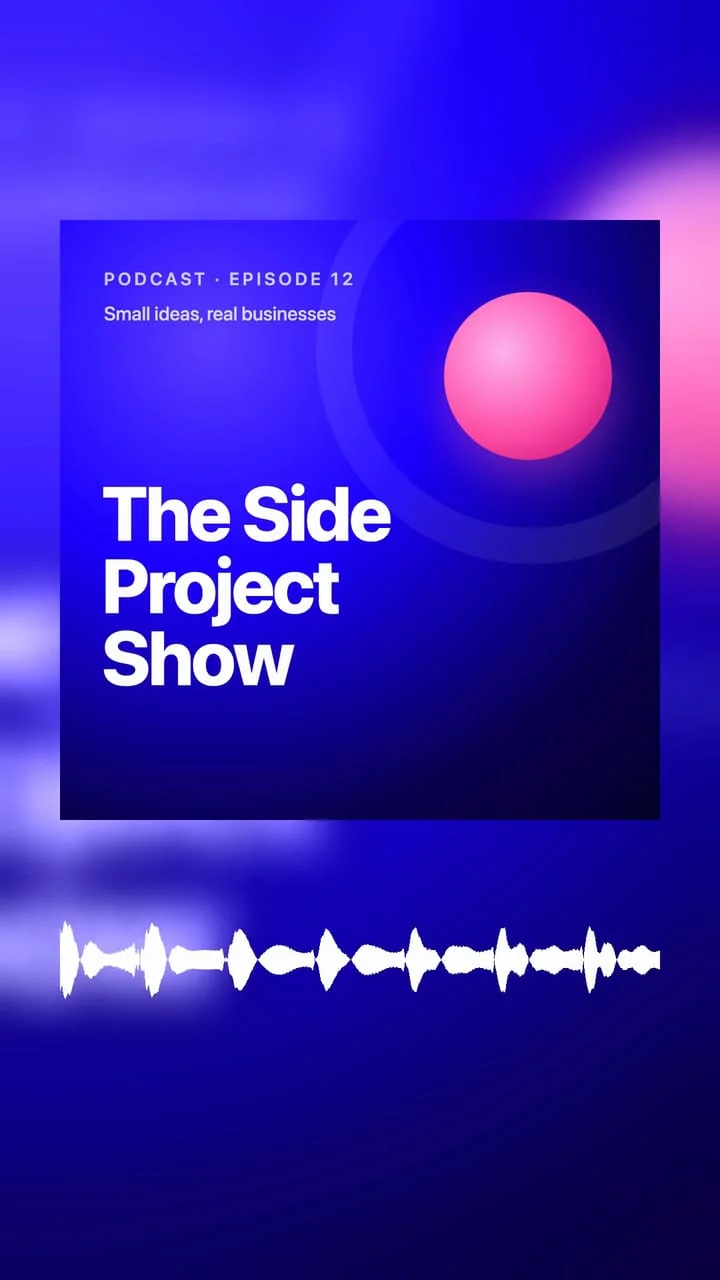
Your cover art, a moving waveform, and your audio. That's an audiogram. It works great on Instagram because the waveform tells people something is playing.
I built Vokal to make these. Here's how:
- Create a free account on Vokal.
- Pick the portrait format. That's the 9:16 size for Reels and Stories.
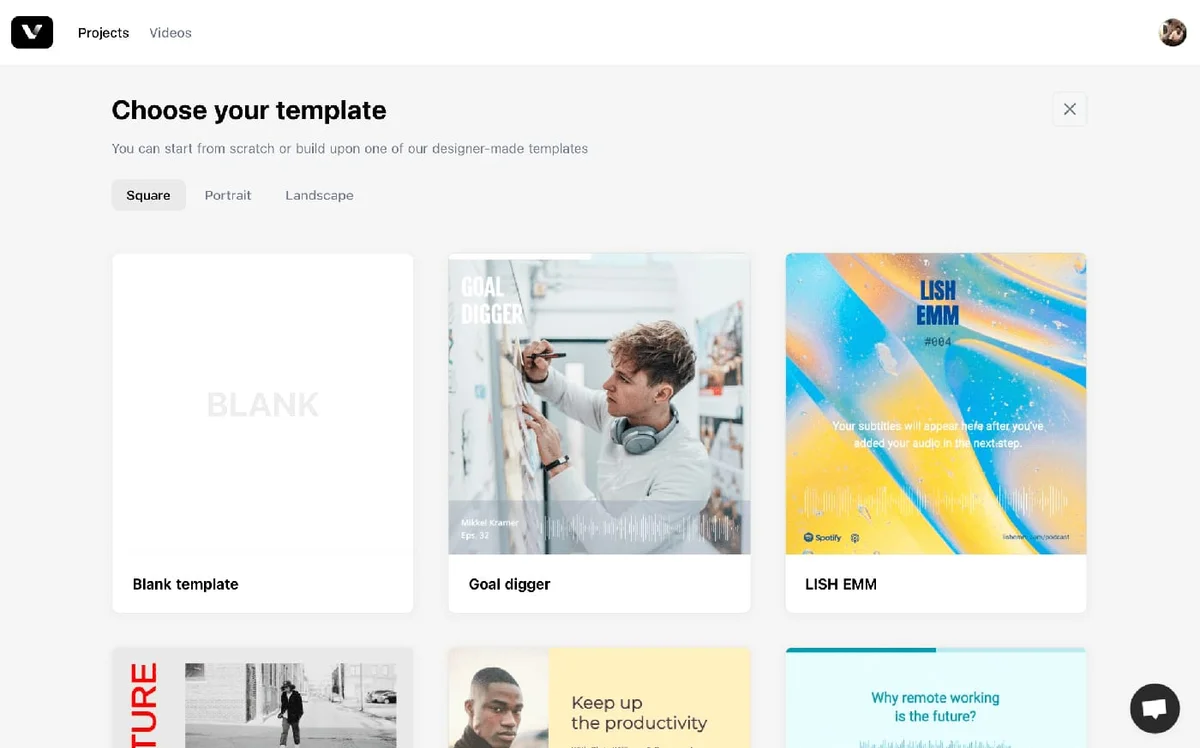
- Choose a template or start blank. Add your cover art and a waveform.
- Click "Add audio" and upload your MP3. Got a podcast? Search for it by name instead.
- Drag over the waveform to pick a short clip. 30 to 60 seconds is plenty.
- Click "Add transcript" for subtitles. Lots of people watch on mute, so don't skip this.
- Hit "Export Video" and download it to your phone.
Into the command line? You can also do this with FFmpeg. Here's my guide on converting MP3 to MP4 with FFmpeg.
Step 2: Post it as a Reel
Got your video on your phone? Good. Now open Instagram.
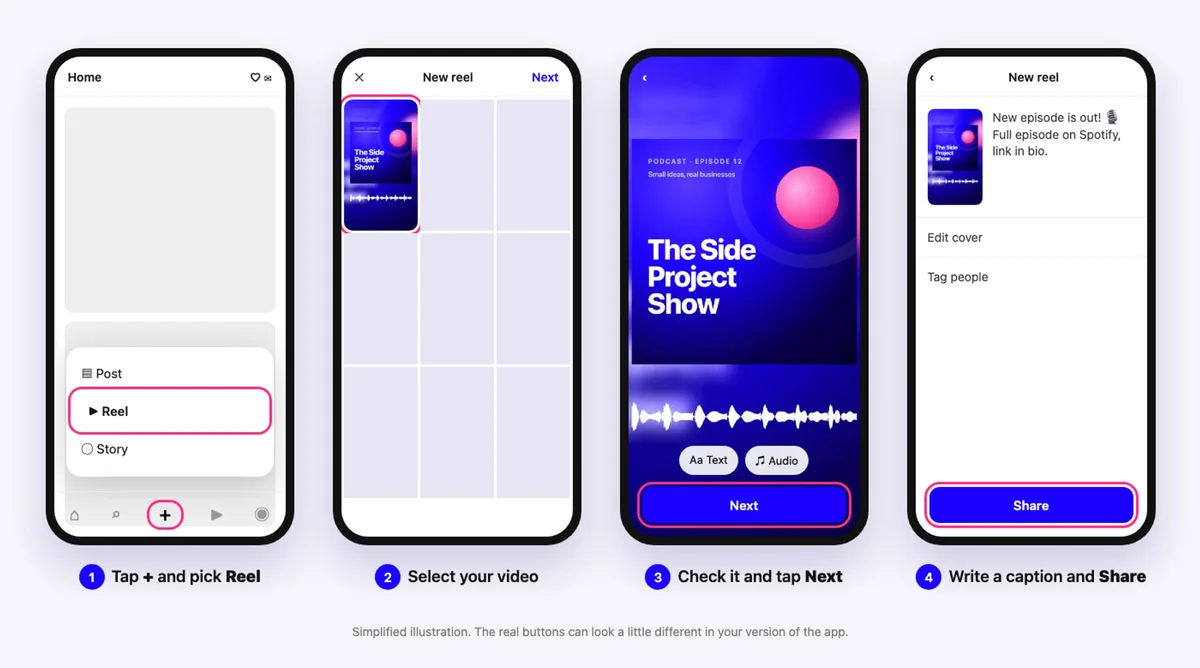
- Tap the + button and choose Reel.
- Pick your video from your camera roll.
- Watch the preview. Want to trim it or add text? Do it here. Then tap Next.
- Write a caption and tap Share.
That's it! Your audio is on Instagram.
Quick note. The picture above is a simplified version of the app. Instagram loves moving buttons around, so your app might not match exactly. The steps stay the same.
What about a normal post?
These days Instagram shares video posts as Reels anyway. So there's no real difference. Post it as a Reel and it shows up in your grid too.
Post it to your Story
Stories are great for new episodes. They stay at the top of everyone's app for a day. And you can add a link!
- Tap the + button and choose Story.
- Pick your video from your camera roll.
- Tap the sticker icon and add a Link sticker. Paste the link to your full episode.
- Tap Your story to share it.
Long videos get cut into parts. So keep your clip short and to the point.
Post from your computer
You can also post from instagram.com in your browser. Click Create in the menu, then Select from computer. Pick your video, click Next a couple of times, add a caption and hit Share.
Handy if you made your video on your laptop.
The best size for Instagram
Get this wrong and Instagram cuts off the edges of your video.
- Reels and Stories: 1080 x 1920. That's 9:16, tall like your phone.
- Square post: 1080 x 1080.
- Tall post: 1080 x 1350, which is 4:5.
Not sure? Go with 9:16. It fills the whole screen.
Tips to get more people to listen
Posting is easy. Getting people to stop scrolling is the hard part. A few things that help:
- Start strong. The first few seconds decide if people keep watching. Skip the intro and start with the best part.
- Add subtitles. Lots of people scroll with the sound off. Subtitles give them a reason to turn it on.
- Make it move. A waveform or a progress bar shows that something is playing. A still image looks like a photo.
- Show your brand. Use your cover art, your colors and your logo. People should know it's you.
- Tell people where to listen. "Full episode on Spotify, link in bio" is enough.
Need more ideas? I collected 30 ways to promote your podcast.
Frequently asked questions

No. Instagram only accepts photos and videos. Turn your MP3 into a video first, with an image or a waveform, and post that.
Wrapping up
Instagram won't take your MP3. Fine. Give it a video instead. Add a waveform and subtitles, post it as a Reel, and share it to your Story with a link. Done.
Want to try it? Make your first Instagram video for free.

