



You have an MP3. Maybe a podcast episode, maybe a song. And you want it on YouTube or Instagram.
Problem is, those sites want video. Not audio.
The fix is simple. Put a still image on top of your audio and save it as an MP4. FFmpeg can do this in one line. I'll show you how, and I tested every command in this post myself.
1. Install FFmpeg
FFmpeg is free. Pick the one for your computer:
- Mac:
brew install ffmpeg(you need Homebrew for this) - Windows:
winget install Gyan.FFmpeg - Linux:
sudo apt install ffmpeg
No package manager? Download it from the official website.
To check, run ffmpeg -version. If you see a version number, you're set.
2. The basic command
Put your MP3 and your image in one folder. I'll call them audio.mp3 and cover.jpg. Open your terminal in that folder and run this:
ffmpeg -loop 1 -i cover.jpg -i audio.mp3 -c:v libx264 -tune stillimage -c:a aac -b:a 192k -pix_fmt yuv420p -shortest -fflags +shortest -max_interleave_delta 100M output.mp4
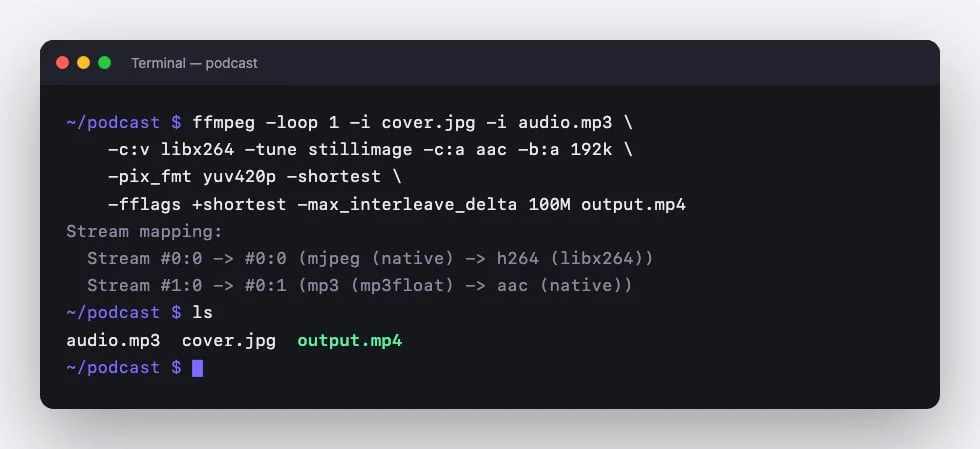
Done. You now have output.mp4.
Looks long, right? Don't worry, it's not as scary as it looks:
-loop 1 -i cover.jpgshows your image over and over, once for every frame.-i audio.mp3is your sound.-c:v libx264makes H.264 video. YouTube, Instagram and TikTok all take it.-tune stillimagelets FFmpeg know nothing moves, so the file stays small.-c:a aac -b:a 192ksaves the audio as AAC. 192 kbps sounds great for voice and music.-pix_fmt yuv420pis the boring one you still need. Leave it out and QuickTime shows a black screen.-shortest -fflags +shortest -max_interleave_delta 100Mstops the video when the audio ends. More on this one below.output.mp4is the name of your new video.
3. Why is my video longer than my audio?
This one got me.
Most guides online only use -shortest. So I tried that first. My audio was 8.5 seconds long. The video? 25 seconds. The last part was just the image with no sound.
The looped image runs ahead of the audio, and -shortest alone doesn't catch it in time. Adding -fflags +shortest -max_interleave_delta 100M fixed it for me. The video came out at 8.56 seconds.
So if your video has a long silent tail, that's the reason. Use the full command from step 2.
4. Pick the right size
The basic command keeps the size of your image. A square cover gives you a square video. That's fine for some places. But each platform has its own favorite size.
YouTube (16:9)
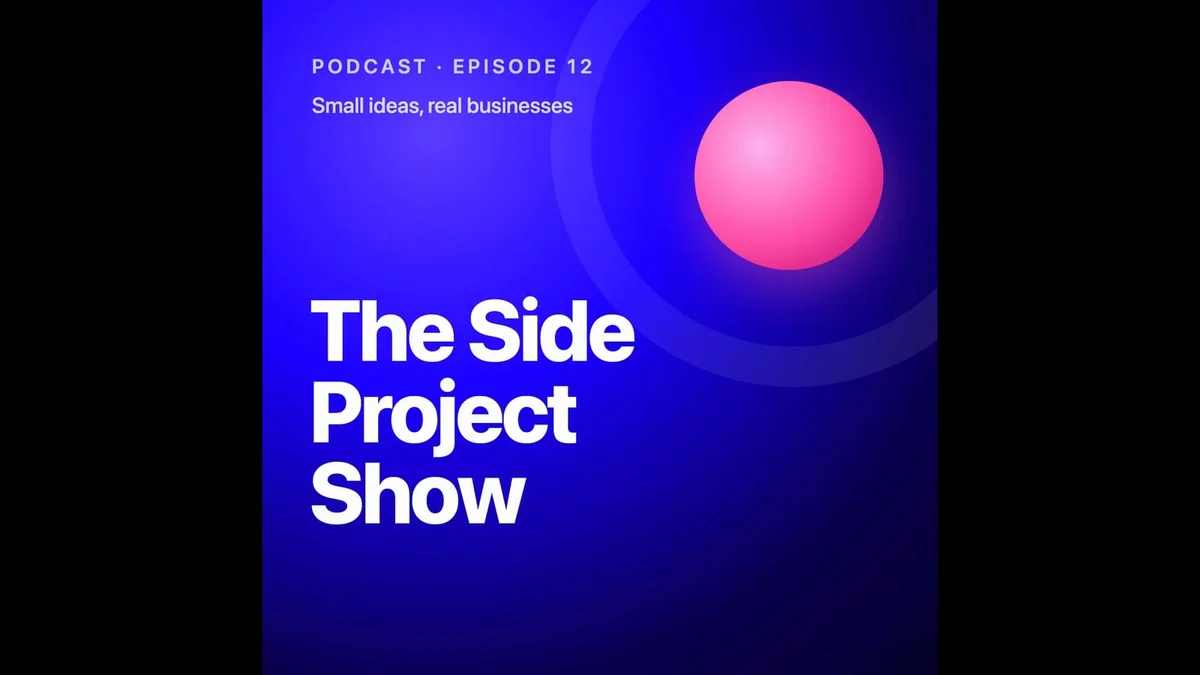
ffmpeg -loop 1 -i cover.jpg -i audio.mp3 -vf "scale=1920:1080:force_original_aspect_ratio=decrease,pad=1920:1080:(ow-iw)/2:(oh-ih)/2" -c:v libx264 -tune stillimage -c:a aac -b:a 192k -pix_fmt yuv420p -shortest -fflags +shortest -max_interleave_delta 100M youtube.mp4
This puts your image in the middle of a 1920x1080 frame, with black bars on the sides. Like this:
Want to upload it as a podcast? Here's my guide on how to upload your podcast to YouTube.
Instagram Reels and TikTok (9:16)
Same trick, just a tall frame:
ffmpeg -loop 1 -i cover.jpg -i audio.mp3 -vf "scale=1080:1920:force_original_aspect_ratio=decrease,pad=1080:1920:(ow-iw)/2:(oh-ih)/2" -c:v libx264 -tune stillimage -c:a aac -b:a 192k -pix_fmt yuv420p -shortest -fflags +shortest -max_interleave_delta 100M reel.mp4
Instagram feed (1:1)
Got a square cover? Just scale it to 1080x1080:
ffmpeg -loop 1 -i cover.jpg -i audio.mp3 -vf "scale=1080:1080" -c:v libx264 -tune stillimage -c:a aac -b:a 192k -pix_fmt yuv420p -shortest -fflags +shortest -max_interleave_delta 100M square.mp4
Not sure which size to use? I wrote a whole post on how to post audio on Instagram.
5. Add a waveform
A still image is a bit boring. People scroll right past it. A moving waveform shows that something is playing.
FFmpeg has a filter for that called showwaves:
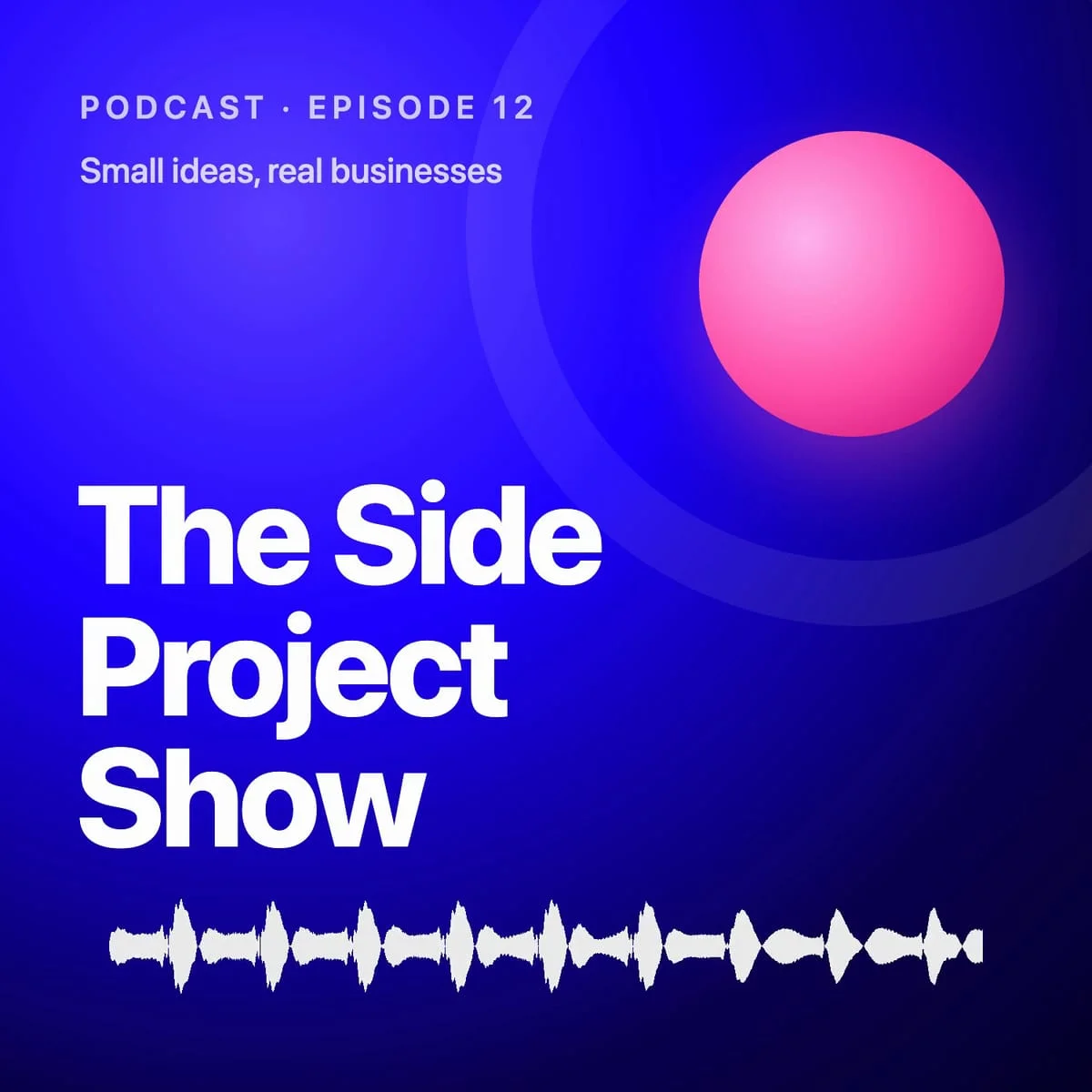
ffmpeg -loop 1 -i cover.jpg -i audio.mp3 -filter_complex "[1:a]showwaves=s=1200x240:mode=cline:colors=white[wave];[0:v][wave]overlay=(W-w)/2:H-h-80:shortest=1[v]" -map "[v]" -map 1:a -c:v libx264 -c:a aac -b:a 192k -pix_fmt yuv420p -shortest waveform.mp4
Here's a frame from my test video:
A few things you can change:
s=1200x240is the size of the waveform.mode=clineis the style. Tryline,p2porpointtoo.colors=whiteis the color. Any color name or hex code works, like0x1b00ff.H-h-80places it 80 pixels from the bottom.
Note the shortest=1 at the end of the overlay. It does the same job as the flags in step 3, so the video stops when the audio does.
Want more control over the look? My post on audio waveform animations goes deeper.
6. Convert a whole folder at once
Got a bunch of episodes? Run this and grab a coffee. Every MP3 in the folder gets its own MP4, all with the same cover:
for f in *.mp3; do ffmpeg -loop 1 -i cover.jpg -i "$f" -c:v libx264 -tune stillimage -c:a aac -b:a 192k -pix_fmt yuv420p -shortest -fflags +shortest -max_interleave_delta 100M "${f%.mp3}.mp4"; done
So episode-1.mp3 turns into episode-1.mp4. Spaces in file names are fine too. This one is for Mac and Linux. On Windows, run it in Git Bash or WSL.
Don't like the command line?
I get it. FFmpeg is great, but it's a lot of typing for one video. And it can't easily do subtitles, progress bars or nice templates.
That's why I built Vokal. You upload your MP3, pick a template and add a waveform, subtitles and your logo. Then export. No commands needed.
Try it for free. No credit card needed.
More FFmpeg guides from me:
- Add audio to a video with FFmpeg
- Convert TS to MP4 with FFmpeg
- Add color noise to a video with FFmpeg
Frequently asked questions

Sort of. A video needs pictures, but they can be plain black. Swap -loop 1 -i cover.jpg for -f lavfi -i color=c=black:s=1920x1080 and you're done.
Wrapping up
That's really all there is to it. One command, one image, one MP3. Pick your size, maybe add a waveform, and you're ready to post.
Happy converting!

