



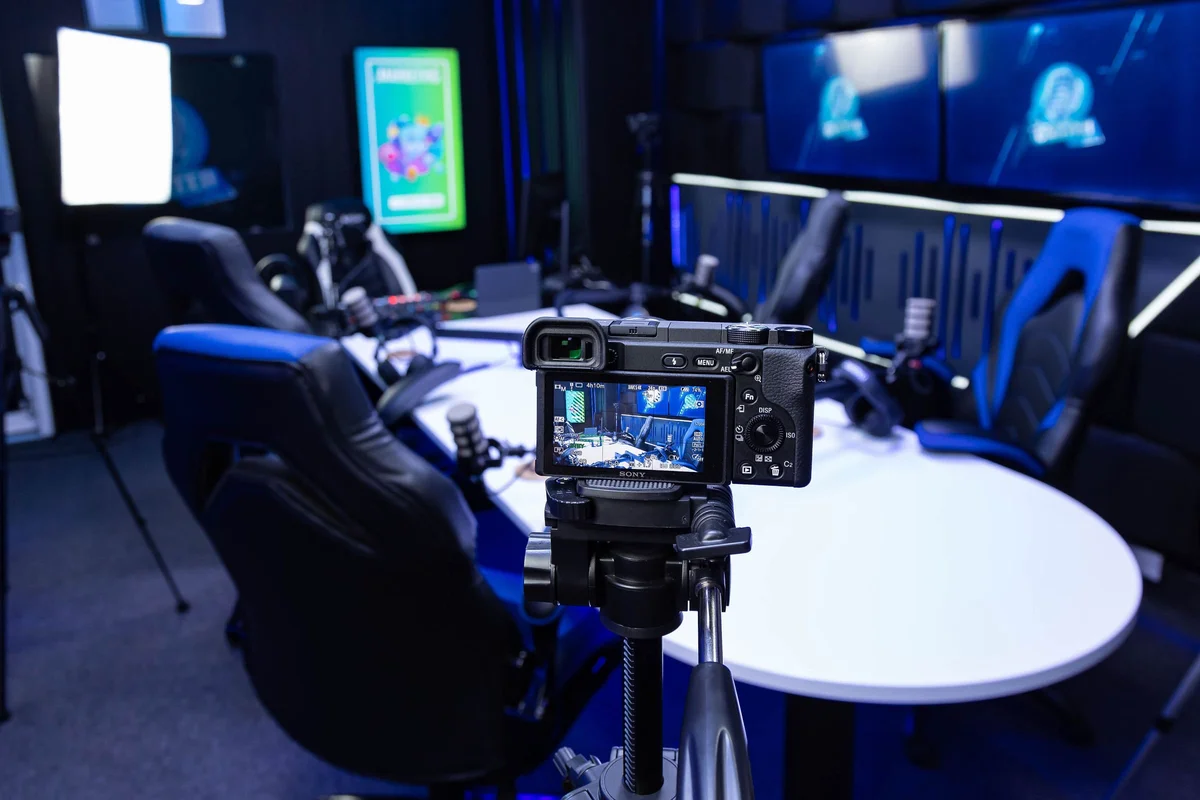
A few years ago, YouTube wasn't really a place for podcasts. Now it's one of the biggest podcast apps in the world.
So if your show isn't on YouTube yet, you're missing out on a lot of listeners.
The good news? You don't need a camera or a fancy studio. In this guide, I'll show you how to upload your podcast to YouTube. Even if you only have audio.
The problem
YouTube only accepts video files. You can't upload an MP3.
So you have a few options:
- Let YouTube do it for you with your RSS feed.
- Turn your audio into a video and upload it yourself.
- Film your podcast and upload the video.
I'll go through the first two. If you already film your show, you can skip to creating a podcast on YouTube.
Option 1: Use your RSS feed
YouTube can pull in your episodes from your RSS feed. It turns every episode into a video with your cover art as a still image.
This is the fastest option. But it's not available in every country yet. Check the YouTube help page to see if it works where you live.
1. Find your RSS feed
Log in to wherever you host your podcast. Spotify for Creators, Buzzsprout, Libsyn, that kind of thing. Somewhere in there is a link that usually ends with ".xml" or "/rss". That's your feed.
2. Open YouTube Studio
Head over to YouTube Studio and sign in. Click on "Create" in the top right corner. Then click on "New podcast" and pick "Submit RSS feed".
3. Paste your feed and verify it
Accept the terms and paste your RSS feed link. YouTube will send a code to the email address in your feed. Enter the code to prove the show is yours.
Don't know which email is in your feed? Ask your podcast host.
4. Choose your episodes
You can import all your episodes, only the ones after a certain date, or only new ones. Pick what you like and hit "Save".
5. Publish
Now you wait. It can take a few hours or even a few days. Once YouTube has all your episodes, go to "Content", then "Podcasts" and click "Publish".
Done! From now on, every new episode shows up on YouTube by itself.
The downside
It's easy, but it's not pretty. Every episode is a still image for an hour. Nothing moves. And people on YouTube are there to watch something.
Which brings me to option 2.
Option 2: Turn your audio into a video
You can make your podcast a lot more fun to watch with a few simple things. An animated waveform. Subtitles. A progress bar. Your logo.
This is exactly why I built Vokal. Here's how it works.
Step 1: Create your video
- Create a free account on Vokal.
- Pick the landscape (16:9) format. That's the size YouTube uses.
- Grab a template, or go blank.
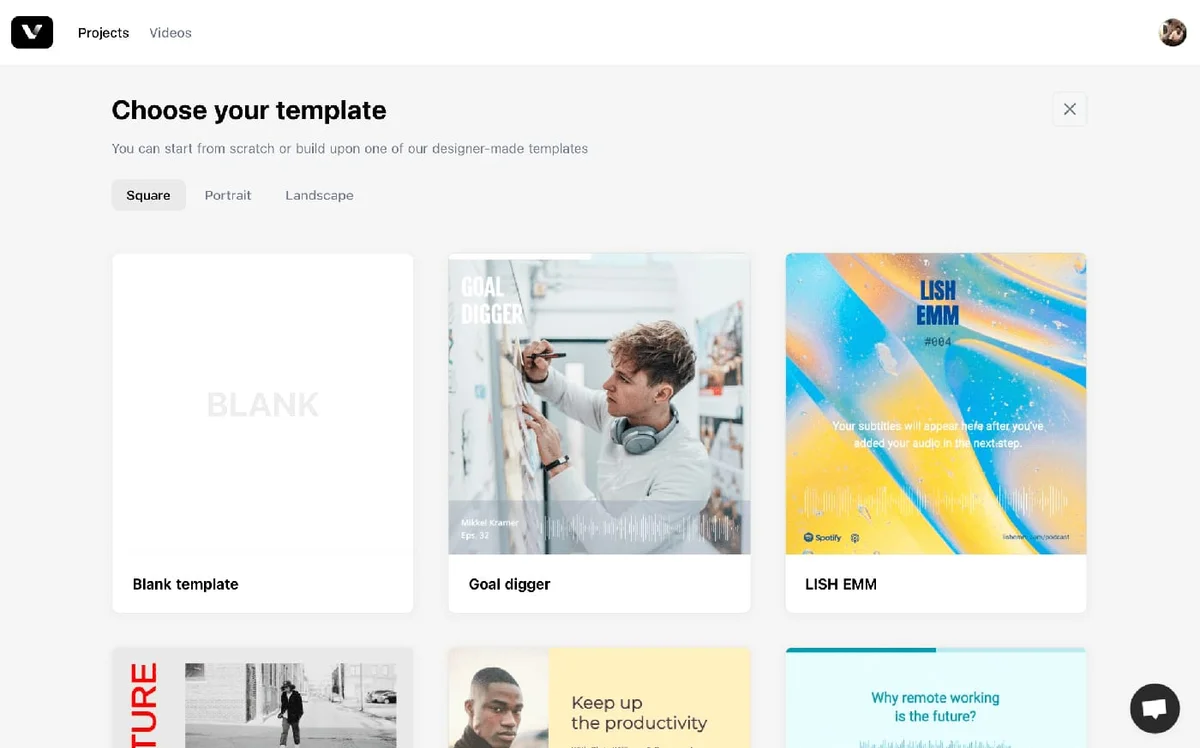
- Add your cover art, a waveform and your logo from the left sidebar.
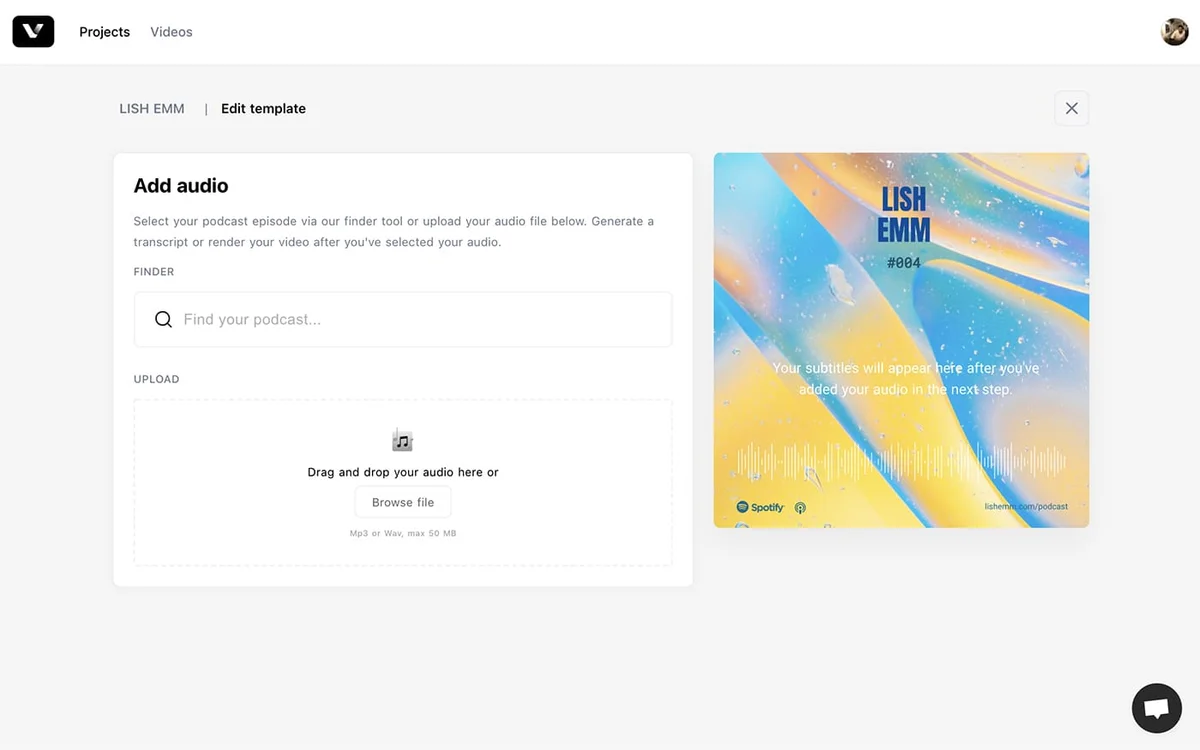
- Click "Add audio" and upload your MP3. Or search for your podcast by name and pick an episode.
- Click "Add transcript" if you want subtitles. Fix any typos and pick a style.
- Hit "Export Video". You'll get an email when it's ready.
Tip. You can save your template and reuse it for every episode. So the next one takes only a few minutes.
Step 2: Upload the video to YouTube
- Go to YouTube Studio.
- Click on "Create" and then "Upload videos".
- Select your video file.
- Add a title, a description and a thumbnail. More on that below.
- Click "Next" until you reach "Visibility". Pick "Public" and hit "Publish".
Step 3: Create a podcast on YouTube
Want your episodes to show up as a podcast? Then you need to add them to a podcast playlist. YouTube shows these on the Podcasts tab and in YouTube Music.
- In YouTube Studio, click on "Create" and then "New podcast".
- Choose "Create new playlist". Or pick an existing playlist with your episodes.
- Add a title, a description and a square cover image.
- Click "Create".
Now add your episodes to the playlist. From here on, add each new episode as you upload it.

Make people click
Uploading is the easy part. Getting people to click is harder. A few tips:
- Write a clear title. Say what the episode is about. "Episode 47" tells people nothing. "Why I quit my job to start a bakery" does.
- Make a custom thumbnail. Use a big face, a few bold words and high contrast. It's the first thing people see.
- Use chapters. Put timestamps in your description, like "04:12 The bakery idea". YouTube picks them up and splits your video into chapters. Super handy for a one hour episode.
- Post clips. Cut short clips from each episode and post them as Shorts. They're like trailers for the full episode. Read what an audiogram is to learn how.
- Link to your other platforms. Not everyone wants to listen on YouTube. Add links to Spotify and Apple Podcasts in your description.
Looking for more ways to grow? Here are 30 tips to promote your podcast.
Frequently asked questions

No. YouTube only accepts video files. You need to turn your MP3 into a video first, or let YouTube do it for you with your RSS feed.
Wrapping up
So that's it. Short on time? Hand YouTube your RSS feed and let it do the work. Want it to look good? Turn your audio into a video first.
Want to give it a try? Create your first podcast video for free.

